Day 5: Maze Design
Friday, March 20th, 2026
Warmup: Maze Analysis
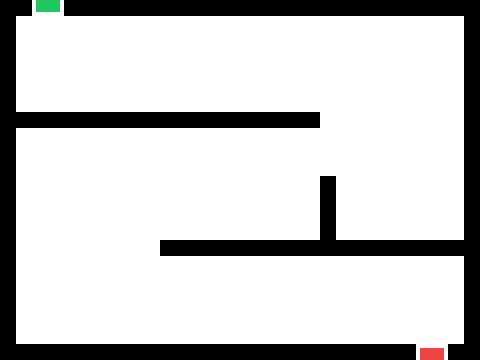
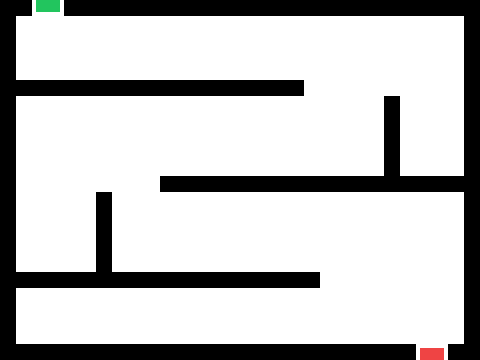
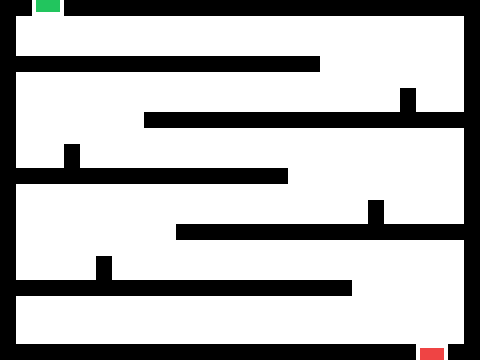
Look at the example mazes here. Respond to the following questions using the discussion post on CTLS:
- Which maze is the easiest? Which is the hardest? Why?
- What makes a maze fun to play? What makes it frustrating?
- How wide do the paths need to be for a small character to fit through?
Design Rules
When you design your own maze, it must follow these rules:
- 40 squares wide × 30 squares tall — this matches the shape of the Scratch stage.
- Paths at least 2 squares wide — so a sprite can fit through without touching the walls.
- Clear start and finish — mark them with an S and F.
- At least one dead end — to make the maze challenging.
- Must be solvable — there has to be at least one path from start to finish.
Work Session: Part 1: Design Your Maze
You will design a maze on a worksheet, then swap it with a partner for feedback. After that, you will build your partner’s maze in Scratch.
You may choose one partner to work with. You are designing your maze for your partner to build, so make sure to follow the design rules and create a clear, solvable maze.
Phase 1: Design (~8 minutes)
Sketch your maze on the worksheet. Follow the design rules from the warmup:
- Note the worksheet is a 40 × 30 grid that matches the Scratch stage.
- Draw your maze walls inside the grid. Use a pencil so you can erase.
- Mark the start (S) and finish (F).
- Include at least one dead end.
- Trace the solution path lightly to make sure it works.
Phase 2: Swap & Review (~3 minutes)
Trade mazes with your partner. Using a pencil, trace a path from start to finish on their maze:
- Can you solve it?
- Are the paths wide enough (at least 2 squares)?
- Write one piece of feedback on the back of the paper (for example: “widen the corner near the top left” or “add another dead end to make it harder”).
Phase 3: Return
End with your partner’s maze. This is the maze you will build in Scratch.
Work Session: Part 2: Draw Your Maze in Scratch
Now open this Scratch project and remix it.
Click here & Remix the Maze Project
You will implement your partner’s maze design using the drawing tools and the grid costume in the “Maze” sprite. Follow the steps below to create your maze artwork.
Step 1: Set Up the Maze Sprite
- Select the grid costume in the “Maze” sprite. This will help you align your walls to the 40×30 grid.
- Use the fill tool to color the walls.
- Delete squares that are paths. Remember to keep paths at least 2 squares wide.
Step 2: Add the Player
- Choose a small sprite from the library to be the player (or draw your own).
- You can adjust the size of the sprite as needed.
- Position the player sprite at the start of the maze.
That’s it for today. On Monday, you’ll add keyboard controls and make the maze playable.
Standards
- MS-CS-FCP.3.2 — Develop a working vocabulary of computational thinking including sequences and algorithms.
- MS-CS-FCP.4.1 — Develop a working vocabulary of programming including coding, user interfaces, programming language, and events.
- MS-CS-FCP.4.5 — Implement a simple algorithm in a computer program.