Day 4: Motion & Sequences
Thursday, March 19th, 2026
Warmup: Yesterday’s Backdrop
You practiced sequencing and debugging on Code.org Tuesday. Today, we will continue learning about sequencing and debugging, but in Scratch.
- Go to scratch.mit.edu and login.
- Create a new project.
- Practice using the art tools to paint a backdrop.
Take a moment to look at the Motion category in the block palette (the blue blocks). Try dragging a few motion blocks into the code area and clicking on them to see what they do.
Work Session: Part 1: Motion & Sequences
What is a Sequence?
A sequence is a set of instructions that run in order, one after the other. In Scratch, we build sequences by snapping blocks together from top to bottom. The computer follows our instructions exactly in the order we give them.
The Green Flag - an Event
Every Scratch program needs a starting point. The when green flag clicked block (found in the Events category) tells Scratch: “Start running the blocks below me when the user clicks the green flag.”
Without this block, your code won’t run on its own.
Eventsare essential for game design. Every time a user clicks a button or moves the mouse or objects collide, an event can be generated. These events can be used to trigger code to run.
Your Task
Build a program that does the following in sequence when the green flag is clicked:
- Glide the sprite to one spot on the stage.
- Say something for 2 seconds.
- Glide the sprite to a different spot.
- Say something else for 2 seconds.
- Glide the sprite back to where it started.
when green flag clicked
glide (1) secs to x: [ ] y: [ ]
say [ ] for (2) seconds
Work Session: Part 2: Sprites and The Stage
Each sprite is its own independent codable object in Scratch. This means you can have multiple sprites each with unique behavior.
The Stage can also have its own code. You can change the appearance of the stage by changing the backdrop.
Your Task
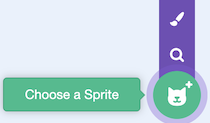
- Create a new sprite by clicking on the
Choose a Spritebutton. Choose one from the library. - Give this second sprite its own code. Follow the same steps as in part 1, but for this second sprite. When you run the code, both sprites should be doing their own thing at the same time!
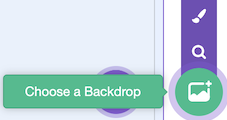
- Bonus On the stage, add two new backdrops. Choose from the library.
- Bonus Add code to the Stage that changes the backdrop when the green flag is clicked or when something else happens in your program.
Closing: Exit Ticket
You’ll need to answer the following question on CTLS. Use complete sentences and be clear in your explanation.
- What is the difference between a sprite and the stage in Scratch?
Finished Early?
Try some of these blocks out in Scratch. Try something on your own in Scratch. Explore the art tools in Scratch.
when [space v] key pressed
pick a block to go here
attach this to something
go to [random position v]
when green flag clicked
forever
if on edge, bounce
move (10) steps
Standards
- MS-CS-FCP.3.2 — Develop a working vocabulary of computational thinking including sequences and algorithms.
- MS-CS-FCP.4.1 — Develop a working vocabulary of programming including coding, user interfaces, programming language, and events.
- MS-CS-FCP.4.5 — Implement a simple algorithm in a computer program.
- MS-CS-FCP.4.6 — Develop an event driven program.