Scratch Art Tools
When you make a game in Scratch, how it looks matters as much as how it works. The paint editor is where you draw sprites, costumes, and backdrops. Learn these tools and use them on purpose.
Opening the Paint Editor
- To draw a sprite, hover over the Choose a Sprite button (bottom right of the stage) and click the paintbrush.
- To draw a backdrop, hover over Choose a Backdrop and click the paintbrush.
- To edit an existing sprite or backdrop, select it and click the Costumes (or Backdrops) tab at the top left.
Color Selection
- Color slider
- Saturation slider
- Brightness slider
- Color picker (eyedropper)
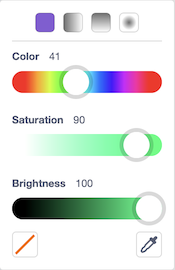
The eyedropper picks a color that is already on the canvas. It also shows up inside the touching color block, where it is the easiest way to match a wall color exactly.
Primitive Shapes
Hold shift while drawing to make perfect squares, circles, and straight lines.
- Line tool
- Circle tool
- Rectangle tool

Primitive shapes have clean edges and solid fills, which makes collision detection reliable. Prefer them over freehand drawing for walls, platforms, and player characters.
Other Tools
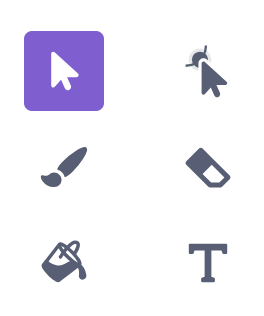
- Paintbrush
- Fill
- Select
- Text
- Reshape
- Eraser
Tips for Game Art
- Keep player sprites small and simple — about 30–40 pixels wide for a platformer, 50–60 for a catch game.
- Use a solid fill with no transparent gaps inside a character. Gaps confuse the
touchingblock. - Draw all the walls of a maze, or all the platforms of a level, in one costume on one sprite. One
touchingcheck then covers all of them. - Use the same color for every wall so
touching colorworks.
Art Challenges
Practice with these when you have a few spare minutes:
- Paint a castle using only the rectangle and circle tools.
- Paint a landscape (trees, mountains) using only the line tool.
- Paint a vehicle using only the brush.
Last updated on